This article follows a trust code from the moment your customer taps Check until the answer is on screen. How the code is built and issued is covered in What a trust code is and how it’s built.
How a check works
-
Your customer taps Check
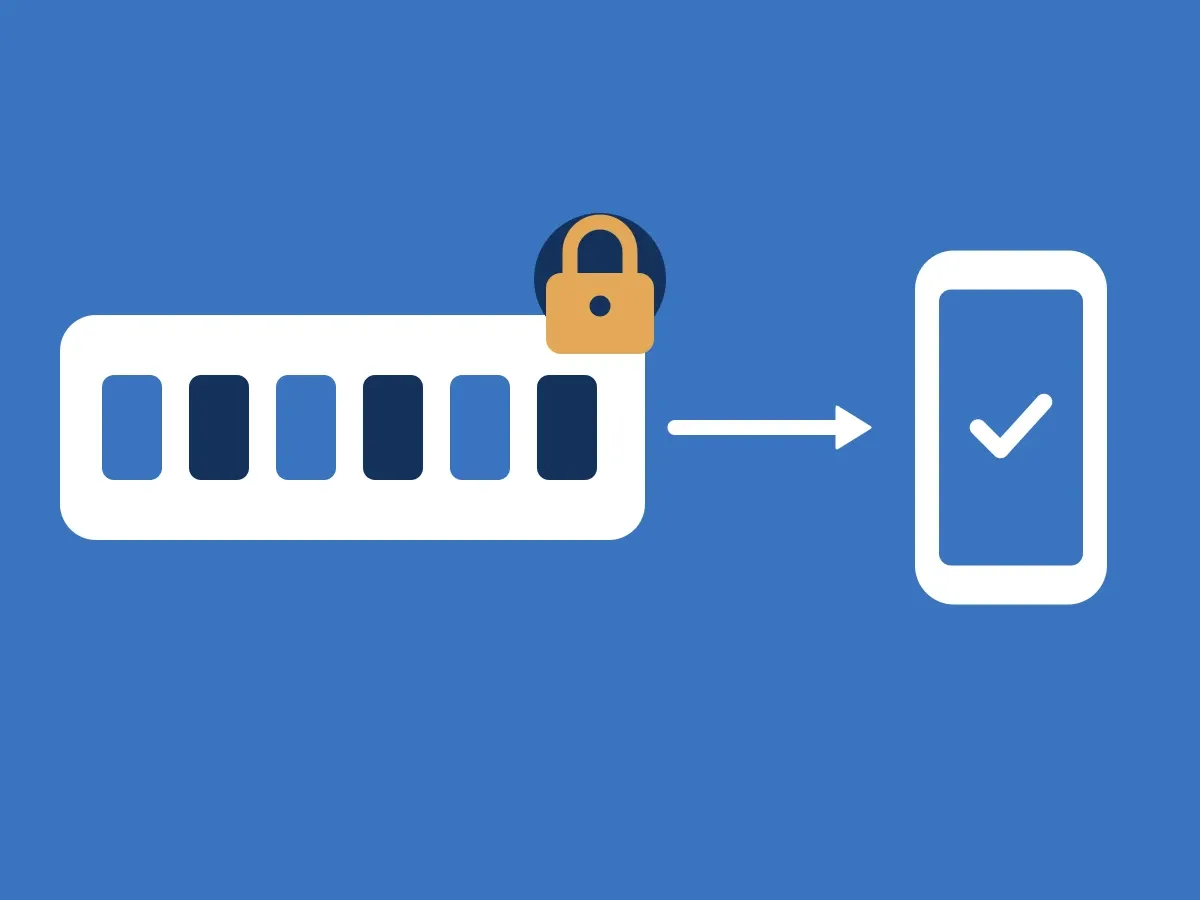
Your customer receives an email or text message with a trust code, copies the code into the ID-Truster app on their phone or desktop, and taps Check.
-
The app sends the code to the ID-Truster Hub
The code goes to the ID-Truster Hub, ID-Truster’s central system, together with the email addresses and phone numbers this user has registered and verified.
-
The Hub passes it on
The format of the code tells the Hub which company issued it. The Hub writes the request to a table that only your ClientDB listens to. ID-Truster never connects to your systems.
-
Your ClientDB checks the code
ClientDB picks up the code and the user’s email addresses and phone numbers. It checks that the code was issued to one of them, that the send is marked as sent, and that both the code and the send are active.
-
ClientDB answers
There are three outcomes. Verified means the code belongs to this user. Unmatched means the code exists but belongs to someone else. Not found means there is no such code. A verified answer also includes the sender address and the date and time the message was sent.
-
The answer is signed and checked
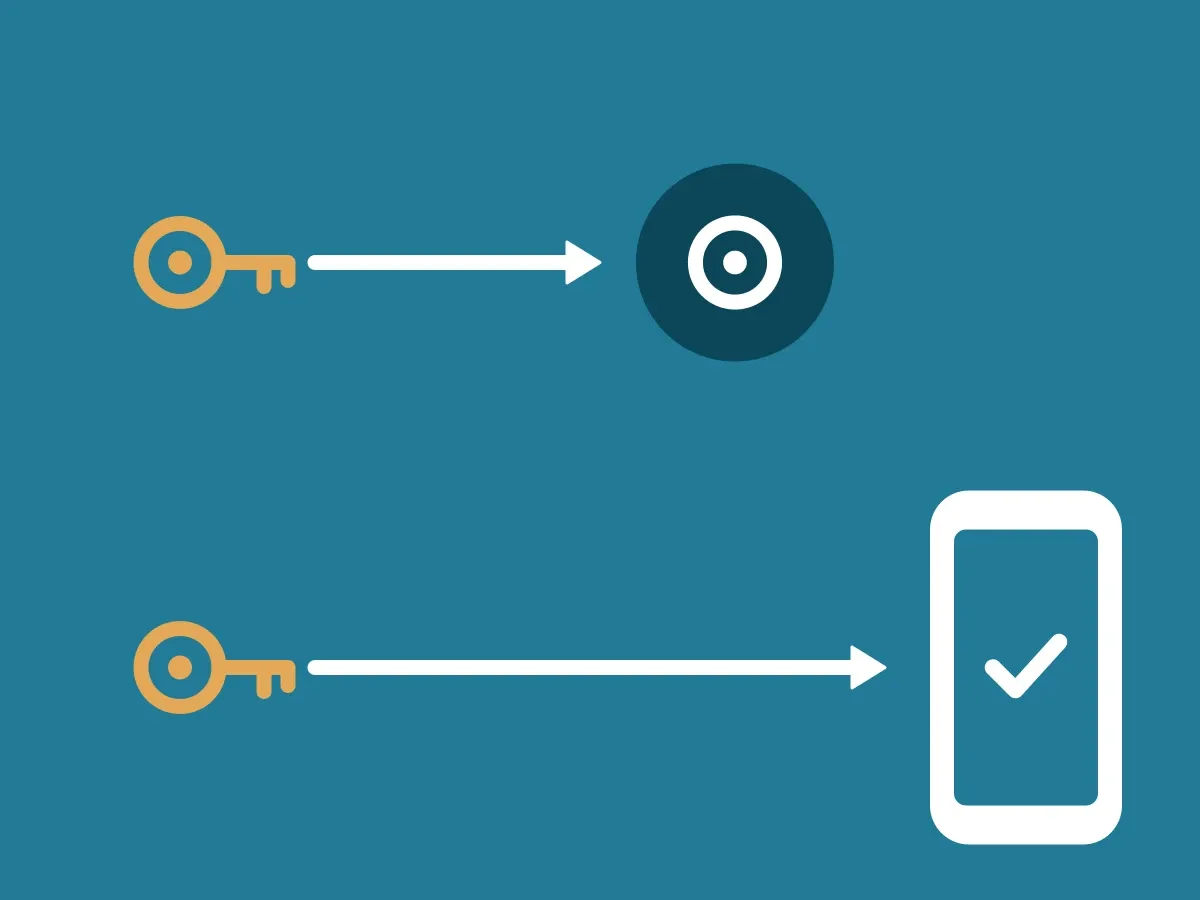
ClientDB signs the answer with your Ed25519 answer key. The answer goes back through the Hub to the app, which checks the signature against the public key in your DNS.
-
Your customer answers three questions
If the code is verified, the app asks your customer three questions about the message.
Every check is verified end to end with a digital signature. Your ClientDB signs the answer with your company’s answer key, and the app checks the signature. How your keys work is in How your two signing keys work. Nobody in between, ID-Truster included, can change the answer without the check failing.
The whole check takes a few seconds.
Who sees what
- The ID-Truster Hub holds the code for the few seconds it takes to pass it on, and sees the signed answer on its way back. It has no access to your ClientDB.
- Your ClientDB sees which user checks which code.
- The app gets the answer, the signature, and what it needs for the three questions.
Three questions that stop copied codes
A valid code is not enough on its own. Someone could copy a trust code your company sent to a customer, put it in a new email to the same customer, and pose as you. The code would still belong to that customer.
That is why the app asks three questions when a code is verified. What is the sender’s email address? On what date did you receive the message? At what time? For a text message, the first question asks about the sender’s phone number or sender name instead.
Each question has several options that look close to the real one. Only one is right. The app creates the wrong options from the real answer, for example a sender address that differs by a single character or by its domain ending. So your customer has to actually look at the message.
A copied code in a new message fails, because the new message arrived on a different date or at a different time. Even if the sender address is faked to look like yours, the time does not match. If an answer is wrong, the app warns that the message may not come from the company.
Most emails arrive within a few minutes, and that is fine. The app rounds the time to the nearest quarter hour, and the wrong times are at least an hour away from the right one.
When a check fails
Every error screen in the app has the heading “Could not verify code.” The text below it depends on the reason.
| Situation | What the app shows |
|---|---|
| The code does not exist | “The code could not be found. Check that the code is entered correctly.” |
| The code was issued to someone else | “The code exists, but did not match your phone numbers or email. Check that you have added the phone number or email the code was sent to.” |
| The signature does not check out | “This message could not be verified. Treat it as not genuine.” |
| No answer in time | “It is taking longer than expected to get a response. Please try again later.” |
| Any other rejection | “The code was rejected.” |
A signature error also covers a missing signature, a key that cannot be fetched from DNS, a timestamp that is off by more than 60 seconds, and an answer the app has seen before. Your customer is not told which one. A signature error overrides any other answer, and the app reports it to ID-Truster.
Your company is also notified when a signature check fails. It can have an innocent cause, such as a DNS change, but it can also be an early sign that someone is trying to use your name. Either way, you hear about it right away and can look into it.
The app waits up to 60 seconds for an answer. After 5 seconds, your customer can tap Try again. If your ClientDB cannot be reached, your customer is asked to try again later.